<?xml version="1.0" encoding="utf-8"?><feed xmlns="http://www.w3.org/2005/Atom" ><generator uri="https://jekyllrb.com/" version="4.4.1">Jekyll</generator><link href="https://layer22.com/feed.xml" rel="self" type="application/atom+xml" /><link href="https://layer22.com/" rel="alternate" type="text/html" /><updated>2026-03-11T22:07:37+01:00</updated><id>https://layer22.com/feed.xml</id><title type="html">layer|twenty|two</title><subtitle>Functional Web Applications</subtitle><author><name>Piotr Usewicz</name><email>piotr@layer22.com</email></author><entry><title type="html">Swift and Cute Framework: Setting up a project with CMake</title><link href="https://layer22.com/swift-and-cute-framework-setting-up-a-project-with-cmake" rel="alternate" type="text/html" title="Swift and Cute Framework: Setting up a project with CMake" /><published>2025-06-06T09:26:00+02:00</published><updated>2026-03-11T22:06:36+01:00</updated><id>https://layer22.com/swift-and-cute-framework-setting-up-a-project-with-cmake</id><content type="html" xml:base="https://layer22.com/swift-and-cute-framework-setting-up-a-project-with-cmake"><![CDATA[<p><a href="https://randygaul.github.io/cute_framework/">Cute Framework</a> is a simple, yet powerful C/C++ framework for building 2D games using the modern GPU pipeline. While C or C++ is fine, <a href="https://www.swift.org">Swift</a> is a modern language that many developers prefer for its safety and expressiveness. In this post, we will explore how to set up a project using Cute Framework with <a href="https://cmake.org">CMake</a>, enabling you to write your game logic in Swift while leveraging the performance of C/C++ for rendering and other performance-critical tasks.</p>

<h2 id="prerequisites">Prerequisites</h2>

<p>Before we begin, ensure you have the following installed:</p>

<ul>
  <li><a href="https://www.swift.org">Swift</a> (latest version, preferably Swift 6 or later)</li>
  <li><a href="https://cmake.org">CMake</a> (we are going to use the most recent version 4.0, but 3.20+ should work just fine)</li>
  <li><a href="https://ninja-build.org">Ninja</a> (required for building Swift with CMake)</li>
</ul>

<h2 id="setting-up-the-project-structure">Setting Up the Project Structure</h2>

<p>Create a new directory for your project and navigate into it:</p>

<div class="language-bash highlighter-rouge"><div class="highlight"><pre class="highlight"><code><span class="nb">mkdir </span>MyCuteGame
<span class="nb">cd </span>MyCuteGame
</code></pre></div></div>

<p>Create the following directory structure:</p>

<div class="language-bash highlighter-rouge"><div class="highlight"><pre class="highlight"><code><span class="nb">mkdir </span>src include
<span class="nb">touch </span>CMakeLists.txt <span class="c"># Our CMake configuration file</span>
<span class="nb">touch </span>src/main.swift <span class="c"># Our main Swift file</span>
<span class="nb">touch </span>include/shim.h <span class="c"># Our C header file for Swift interoperability</span>
<span class="nb">touch </span>include/module.modulemap <span class="c"># Our C module map for Swift interoperability</span>
</code></pre></div></div>

<p>The next step is to configure the <code class="language-plaintext highlighter-rouge">CMakeLists.txt</code> file. Open it in your favorite text editor and add the following content:</p>

<div class="language-cmake highlighter-rouge"><div class="highlight"><pre class="highlight"><code><span class="nb">cmake_minimum_required</span><span class="p">(</span>VERSION 4.0<span class="p">)</span>

<span class="c1"># Set the project name and languages</span>
<span class="nb">project</span><span class="p">(</span>
    MyCuteGame
    LANGUAGES C CXX Swift <span class="c1"># Ensure we include C, C++, and Swift</span>
<span class="p">)</span>

<span class="c1"># Set our game sources</span>
<span class="nb">file</span><span class="p">(</span>GLOB_RECURSE SOURCES CONFIGURE_DEPENDS src/*.swift<span class="p">)</span>

<span class="c1"># Set our executable target</span>
<span class="nb">add_executable</span><span class="p">(</span>MyCuteGame <span class="si">${</span><span class="nv">SOURCES</span><span class="si">}</span><span class="p">)</span>

<span class="c1"># Include FetchContent to download Cute Framework</span>
<span class="nb">include</span><span class="p">(</span>FetchContent<span class="p">)</span>

<span class="c1"># Define cute as our Cute Framework dependency</span>
<span class="nf">FetchContent_Declare</span><span class="p">(</span>
    cute
    GIT_REPOSITORY https://github.com/RandyGaul/cute_framework
<span class="p">)</span>
<span class="c1"># Fetch the Cute Framework</span>
<span class="nf">FetchContent_MakeAvailable</span><span class="p">(</span>cute<span class="p">)</span>

<span class="c1"># Add the Cute Framework as a dependency</span>
<span class="nb">target_include_directories</span><span class="p">(</span>MyCuteGame PUBLIC $&lt;BUILD_INTERFACE:<span class="si">${</span><span class="nv">CMAKE_CURRENT_SOURCE_DIR</span><span class="si">}</span>/include&gt;<span class="p">)</span>
<span class="nb">target_link_libraries</span><span class="p">(</span>MyCuteGame cute<span class="p">)</span>
</code></pre></div></div>

<p>The <code class="language-plaintext highlighter-rouge">CMakeLists.txt</code> file defines few key components:</p>

<ul>
  <li>It sets the project name and specifies that we will be using C, C++, and Swift. We use C and C++ as Cute Framework is written in C/C++.</li>
  <li>It collects all Swift source files in the <code class="language-plaintext highlighter-rouge">src</code> directory.</li>
  <li>It sets up the Cute Framework as a dependency using <code class="language-plaintext highlighter-rouge">FetchContent</code>, which allows us to download and include it directly in our project.</li>
  <li>It creates an executable target named <code class="language-plaintext highlighter-rouge">MyCuteGame</code> and links it with the Cute Framework.</li>
  <li>It includes the <code class="language-plaintext highlighter-rouge">include</code> directory for header files, which will be used for Swift interoperability.</li>
</ul>

<h2 id="setting-up-swift-interoperability">Setting Up Swift Interoperability</h2>

<p>To enable Swift to call C functions, we need to create a C header file and a module map. Open <code class="language-plaintext highlighter-rouge">include/shim.h</code> and add the following content:</p>

<div class="language-c highlighter-rouge"><div class="highlight"><pre class="highlight"><code><span class="cp">#pragma once
#include</span> <span class="cpf">&lt;cute.h&gt;</span><span class="cp">
</span></code></pre></div></div>

<p>The <code class="language-plaintext highlighter-rouge">shim.h</code> file includes the Cute Framework header, allowing Swift to access its functions.</p>

<p>Next, create the module map in <code class="language-plaintext highlighter-rouge">include/module.modulemap</code>:</p>

<div class="language-plaintext highlighter-rouge"><div class="highlight"><pre class="highlight"><code>module CCute [extern_c] {
    header "shim.h"
    export *
}
</code></pre></div></div>

<p>This module map tells Swift how to import the C header file. The <code class="language-plaintext highlighter-rouge">extern_c</code> attribute indicates that this module is a C module, which is necessary for Swift interoperability.</p>

<p>With all that in place, we can now write our Swift code in <code class="language-plaintext highlighter-rouge">src/main.swift</code>. Open this file and add the following content:</p>

<div class="language-swift highlighter-rouge"><div class="highlight"><pre class="highlight"><code><span class="kd">import</span> <span class="kt">CCute</span>

<span class="c1">// Center the window on the screen</span>
<span class="k">let</span> <span class="nv">options</span><span class="p">:</span> <span class="kt">CF_AppOptionFlags</span> <span class="o">=</span> <span class="kt">Int32</span><span class="p">(</span><span class="kt">CF_APP_OPTIONS_WINDOW_POS_CENTERED_BIT</span><span class="o">.</span><span class="n">rawValue</span><span class="p">)</span>
<span class="k">let</span> <span class="nv">width</span><span class="p">:</span> <span class="kt">Int32</span> <span class="o">=</span> <span class="mi">800</span>
<span class="k">let</span> <span class="nv">height</span><span class="p">:</span> <span class="kt">Int32</span> <span class="o">=</span> <span class="mi">600</span>

<span class="c1">// Create the Cute Framework app</span>
<span class="k">let</span> <span class="nv">result</span> <span class="o">=</span> <span class="nf">cf_make_app</span><span class="p">(</span><span class="s">"MyCuteGame"</span><span class="p">,</span> <span class="mi">0</span><span class="p">,</span> <span class="mi">0</span><span class="p">,</span> <span class="mi">0</span><span class="p">,</span> <span class="n">width</span><span class="p">,</span> <span class="n">height</span><span class="p">,</span> <span class="n">options</span><span class="p">,</span> <span class="kt">CommandLine</span><span class="o">.</span><span class="n">unsafeArgv</span><span class="p">[</span><span class="mi">0</span><span class="p">])</span>
<span class="k">if</span> <span class="nf">cf_is_error</span><span class="p">(</span><span class="n">result</span><span class="p">)</span> <span class="p">{</span>
  <span class="nf">fatalError</span><span class="p">(</span><span class="s">"Failed to create Cute Framework app"</span><span class="p">)</span>
<span class="p">}</span>

<span class="c1">// Create a demo girl sprite</span>
<span class="k">var</span> <span class="nv">sprite</span> <span class="o">=</span> <span class="nf">cf_make_demo_sprite</span><span class="p">()</span>
<span class="c1">// Play the "spin" animation</span>
<span class="nf">cf_sprite_play</span><span class="p">(</span><span class="o">&amp;</span><span class="n">sprite</span><span class="p">,</span> <span class="s">"spin"</span><span class="p">)</span>
<span class="c1">// Make the sprite 4x larger</span>
<span class="n">sprite</span><span class="o">.</span><span class="n">scale</span> <span class="o">=</span> <span class="kt">CF_V2</span><span class="p">(</span><span class="nv">x</span><span class="p">:</span> <span class="mf">4.0</span><span class="p">,</span> <span class="nv">y</span><span class="p">:</span> <span class="mf">4.0</span><span class="p">)</span>

<span class="k">while</span> <span class="nf">cf_app_is_running</span><span class="p">()</span> <span class="p">{</span>
  <span class="c1">// Update internal app state without a callback</span>
  <span class="nf">cf_app_update</span><span class="p">(</span><span class="kc">nil</span><span class="p">)</span>

  <span class="c1">// Update the sprite state</span>
  <span class="nf">cf_sprite_update</span><span class="p">(</span><span class="o">&amp;</span><span class="n">sprite</span><span class="p">)</span>

  <span class="c1">// Draw the sprite</span>
  <span class="nf">cf_sprite_draw</span><span class="p">(</span><span class="o">&amp;</span><span class="n">sprite</span><span class="p">)</span>

  <span class="c1">// Draw the app onto the screen with clearing enabled</span>
  <span class="nf">cf_app_draw_onto_screen</span><span class="p">(</span><span class="kc">true</span><span class="p">)</span>
<span class="p">}</span>

<span class="nf">cf_destroy_app</span><span class="p">()</span>
</code></pre></div></div>

<h2 id="configure-and-build-the-project">Configure and Build the Project</h2>

<p>Now that we have our project structure and code set up, we can configure and build the project using CMake. Open a terminal in the root directory of your project and run the following commands:</p>

<div class="language-bash highlighter-rouge"><div class="highlight"><pre class="highlight"><code><span class="nb">mkdir </span>build       <span class="c"># Create a build directory</span>
<span class="nb">cd </span>build
cmake <span class="nt">-G</span> Ninja .. <span class="c"># Configure the project using CMake with Ninja as the generator</span>
cmake <span class="nt">--build</span> <span class="nb">.</span>   <span class="c"># Build the project</span>
</code></pre></div></div>

<p>All that’s left is to run the executable. You can do this by executing:</p>

<div class="language-bash highlighter-rouge"><div class="highlight"><pre class="highlight"><code>./MyCuteGame
</code></pre></div></div>

<p>This should launch your Cute Framework application, displaying a window with a spinning girl sprite.</p>

<p><img src="/images/posts/cute/girl.gif" alt="MyCuteGame" /></p>

<p>Et voilà! You have successfully set up a Cute Framework project using CMake and Swift. You can now start building your game logic in Swift while leveraging the performance of C/C++ for rendering and other tasks.</p>

<p>I encourage you to explore the documentation, and especially the <a href="https://randygaul.github.io/cute_framework/#/getting_started">Getting Started</a> guide.</p>

<p>There is also a Discord server where you can ask questions and share your projects: <a href="https://discord.gg/ZvxfCyjZCj">Cute Framework Discord</a>.</p>]]></content><author><name>Piotr Usewicz</name><email>piotr@layer22.com</email></author><category term="cute" /><category term="cute-framework" /><category term="cmake" /><category term="swift" /><category term="game-development" /><summary type="html"><![CDATA[Cute Framework is a simple, yet powerful C/C++ framework for building 2D games using the modern GPU pipeline. While C or C++ is fine, Swift is a modern language that many developers prefer for its safety and expressiveness. In this post, we will explore how to set up a project using Cute Framework with CMake, enabling you to write your game logic in Swift while leveraging the performance of C/C++ for rendering and other performance-critical tasks.]]></summary></entry><entry><title type="html">Configure MacVim to Automatically Switch Colorschemes Based on macOS Dark or Light Theme</title><link href="https://layer22.com/configure-macvim-to-automatically-switch-colorschemes-based-on-macos-dark-or-light-theme" rel="alternate" type="text/html" title="Configure MacVim to Automatically Switch Colorschemes Based on macOS Dark or Light Theme" /><published>2023-08-23T15:08:00+02:00</published><updated>2026-03-11T22:06:36+01:00</updated><id>https://layer22.com/configure-macvim-to-automatically-switch-colorschemes-based-on-macos-dark-or-light-theme</id><content type="html" xml:base="https://layer22.com/configure-macvim-to-automatically-switch-colorschemes-based-on-macos-dark-or-light-theme"><![CDATA[<h2 id="introduction">Introduction</h2>

<p>MacVim is a powerful text editor that can be customized to suit your preferences. One of the ways to enhance your MacVim experience is by configuring it to change its colorscheme based on the macOS dark or light theme. In this blog post, I will guide you through the process of setting up MacVim to automatically switch colorschemes depending on your macOS theme.</p>

<p>Code for your <code class="language-plaintext highlighter-rouge">.vimrc</code>:</p>

<div class="language-viml highlighter-rouge"><div class="highlight"><pre class="highlight"><code><span class="k">let</span> <span class="nv">g:light_theme</span> <span class="p">=</span> <span class="s1">'dayfox'</span>
<span class="k">let</span> <span class="nv">g:dark_theme</span> <span class="p">=</span> <span class="s1">'nightfox'</span>

func<span class="p">!</span> <span class="nv">s:ChangeBackground</span><span class="p">()</span>
    <span class="k">let</span> <span class="nv">s:theme</span> <span class="p">=</span> <span class="nv">g:light_theme</span>

    <span class="k">if</span> <span class="p">(</span><span class="k">v</span><span class="p">:</span>os_appearance<span class="p">)</span>
        <span class="k">let</span> <span class="nv">s:theme</span> <span class="p">=</span> <span class="nv">g:dark_theme</span>
        <span class="k">set</span> <span class="nb">background</span><span class="p">=</span><span class="nb">dark</span>
    <span class="k">else</span>
        <span class="k">set</span> <span class="nb">background</span><span class="p">=</span><span class="nb">light</span>
    <span class="k">endif</span>

    <span class="nb">execute</span> <span class="s1">'colorscheme '</span> <span class="p">.</span> <span class="nv">s:theme</span>

    <span class="c">" Ensure we re-init lightline</span>
    <span class="k">let</span> <span class="nv">g:lightline</span><span class="p">.</span><span class="k">colorscheme</span> <span class="p">=</span> <span class="nv">s:theme</span>
    <span class="k">call</span> lightline#init<span class="p">()</span>
    <span class="k">call</span> lightline#<span class="k">colorscheme</span><span class="p">()</span>
    <span class="k">call</span> lightline#<span class="k">update</span><span class="p">()</span>

    <span class="k">redraw</span><span class="p">!</span>
endfunc

<span class="k">call</span> <span class="nv">s:ChangeBackground</span><span class="p">()</span>

augroup AutoDark
autocmd<span class="p">!</span>
autocmd OSAppearanceChanged \* <span class="k">call</span> <span class="nv">s:ChangeBackground</span><span class="p">()</span>
augroup END
</code></pre></div></div>

<h2 id="what-does-it-all-do">What does it all do?</h2>

<p>First, define the light and dark colorschemes you wish to use. In the example code, I’m using ‘dayfox’ for the light theme and ‘nightfox’ for the dark theme. You can replace these with any other colorschemes you prefer.</p>

<div class="language-viml highlighter-rouge"><div class="highlight"><pre class="highlight"><code><span class="k">let</span> <span class="nv">g:light_theme</span> <span class="p">=</span> <span class="s1">'dayfox'</span>
<span class="k">let</span> <span class="nv">g:dark_theme</span> <span class="p">=</span> <span class="s1">'nightfox'</span>
</code></pre></div></div>

<p>Next, create a function called <code class="language-plaintext highlighter-rouge">s:ChangeBackground()</code> to handle the colorscheme change based on the macOS theme setting. This function will:</p>

<ul>
  <li>Set the default colorscheme to the light theme.</li>
  <li>Check the value of <code class="language-plaintext highlighter-rouge">v:os_appearance</code>. If it’s true (1), macOS is set to dark mode, and the dark theme will be used. Otherwise, the light theme will be used.</li>
  <li>Apply the chosen colorscheme and update the lightline colorscheme accordingly.</li>
  <li>Call the necessary lightline functions to initialize, set the colorscheme, and update the status line.</li>
</ul>

<div class="language-viml highlighter-rouge"><div class="highlight"><pre class="highlight"><code>func<span class="p">!</span> <span class="nv">s:ChangeBackground</span><span class="p">()</span>
    <span class="k">let</span> <span class="nv">s:theme</span> <span class="p">=</span> <span class="nv">g:light_theme</span>

    <span class="k">if</span> <span class="p">(</span><span class="k">v</span><span class="p">:</span>os_appearance<span class="p">)</span>
        <span class="k">let</span> <span class="nv">s:theme</span> <span class="p">=</span> <span class="nv">g:dark_theme</span>
        <span class="k">set</span> <span class="nb">background</span><span class="p">=</span><span class="nb">dark</span>
    <span class="k">else</span>
        <span class="k">set</span> <span class="nb">background</span><span class="p">=</span><span class="nb">light</span>
    <span class="k">endif</span>

    <span class="nb">execute</span> <span class="s1">'colorscheme '</span> <span class="p">.</span> <span class="nv">s:theme</span>

    <span class="c">" Ensure we re-init lightline</span>
    <span class="k">let</span> <span class="nv">g:lightline</span><span class="p">.</span><span class="k">colorscheme</span> <span class="p">=</span> <span class="nv">s:theme</span>
    <span class="k">call</span> lightline#init<span class="p">()</span>
    <span class="k">call</span> lightline#<span class="k">colorscheme</span><span class="p">()</span>
    <span class="k">call</span> lightline#<span class="k">update</span><span class="p">()</span>

    <span class="k">redraw</span><span class="p">!</span>
endfunc
</code></pre></div></div>

<p>Call the <code class="language-plaintext highlighter-rouge">s:ChangeBackground()</code> function to set the initial colorscheme based on the current macOS theme.</p>

<div class="language-viml highlighter-rouge"><div class="highlight"><pre class="highlight"><code><span class="k">call</span> <span class="nv">s:ChangeBackground</span><span class="p">()</span>
</code></pre></div></div>

<p>Finally, create an autocommand group called <code class="language-plaintext highlighter-rouge">AutoDark</code> that will listen for the <code class="language-plaintext highlighter-rouge">OSAppearanceChanged</code> event. When the event is triggered, the <code class="language-plaintext highlighter-rouge">s:ChangeBackground()</code> function will be called, and the colorscheme will be updated accordingly.</p>

<div class="language-viml highlighter-rouge"><div class="highlight"><pre class="highlight"><code>augroup AutoDark
autocmd<span class="p">!</span>
autocmd OSAppearanceChanged * <span class="k">call</span> <span class="nv">s:ChangeBackground</span><span class="p">()</span>
augroup END
</code></pre></div></div>

<h2 id="conclusion">Conclusion</h2>

<p>By following these steps and using the provided example code, you can configure MacVim to automatically switch between light and dark colorschemes based on the macOS theme.</p>]]></content><author><name>Piotr Usewicz</name><email>piotr@layer22.com</email></author><category term="vim" /><summary type="html"><![CDATA[Introduction]]></summary></entry><entry><title type="html">My Journey From QWERTY to Norman and Back: A Vim User’s Tale</title><link href="https://layer22.com/my-journey-from-qwerty-to-norman-and-back-a-vim-users-tale" rel="alternate" type="text/html" title="My Journey From QWERTY to Norman and Back: A Vim User’s Tale" /><published>2023-04-09T04:38:00+02:00</published><updated>2026-03-11T22:06:36+01:00</updated><id>https://layer22.com/my-journey-from-qwerty-to-norman-and-back-a-vim-users-tale</id><content type="html" xml:base="https://layer22.com/my-journey-from-qwerty-to-norman-and-back-a-vim-users-tale"><![CDATA[<p>As a programmer and avid typist, I’m constantly on the lookout for ways to
improve my typing experience. In my quest for a more efficient keyboard layout,
I decided to embark on a journey to switch from the traditional <a href="https://en.wikipedia.org/wiki/QWERTY">QWERTY</a> layout
to the Norman layout, only to find myself back at QWERTY due to some unforeseen
difficulties with Vim. In this blog post, I’ll share my experiences, the pros
and cons of each layout, and what I learned along the way.</p>

<h2 id="introduction">Introduction</h2>

<p>For many, many years, I have been intrigued by alternative keyboard layouts. I
always wondered whether they brought value to day-to-day work as a software
engineer. Quite early in my career, I bumped into people using Dvorak and
Colemak. I wanted to find out for myself, but the idea of learning, and thus
struggling to type quickly for some time, would always put me off, so I kept
postponing the decision to switch.</p>

<p>Things changed drastically when I decided to change my standard keyboard to the
more ergonomic <a href="https://ergodox-ez.com/">ErgoDox EZ</a> and eventually the
<a href="https://www.zsa.io/moonlander/">Moonlander</a> with sculpted blank keycaps. Given the slight
difference in keyboard layout, such as the ortho-linear key layout, the thumb
cluster, the default position of the Command, Backspace or Delete keys meant
that there was a time in which my typing speed was impacted negatively.</p>

<p>I challenged myself to keep practising daily on websites such as <a href="https://configure.zsa.io/train">ZSA’s own
Train</a>, <a href="https://monkeytype.com/">Monkeytype</a> or <a href="https://www.keybr.com/">Keybr</a>. After a good month
or two, I was back at ~80 words per minute. Life was glorious again!</p>

<p>The whole process made me realise that however painful the initial period was,
I was able to overcome it and eventually become as productive as before. It
also felt satisfying to combat old habits.</p>

<h2 id="the-allure-of-the-norman-layout">The Allure of the Norman Layout</h2>

<p>The QWERTY keyboard layout, created in the late 19th century, is widely used
today despite its somewhat inefficient design. In search of a better
alternative, I came across the <a href="https://normanlayout.info/">Norman</a> layout, created by David Norman in 2012.
The layout claims to offer a more efficient typing experience by placing the
most frequently used keys on the home row and minimizing finger movement.</p>

<p>I picked this particular layout because it’s not too far off from QWERTY while
still bringing the benefits of an optimised typing experience on the home row.
Maintaining the <kbd>Cmd+Z,X,C,V</kbd> key combinations was particularly important, as I
felt hunting for those during the learning period would be just a bit too much.
Plus <a href="https://people.zsa.io/aaron-patterson/">Aaron Patterson</a> uses it, so it must be good, right?!</p>

<h2 id="the-transition">The Transition</h2>

<p>Going with Norman, as a Vim user, I knew that the standard normal mode
navigation keys would be in entirely different positions. This was far from
perfect, but it encouraged me to continue learning.</p>

<p>Fast-forward 2-3 months, it finally felt natural typing prose using Norman. I
enjoyed how balanced typing felt and how little my fingers had to move away
from the home row to type many words. Looking at the statistics, my typing
speed has not improved. It did feel more effortless, though.</p>

<h2 id="the-vim-dilemma">The Vim Dilemma</h2>

<p>As a programmer, I rely heavily on the Vim text editor for coding and editing
text. Vim is known for its powerful and efficient keyboard-driven interface,
which allows users to navigate and manipulate text quickly without using a
mouse. However, Vim’s keybindings are designed with the QWERTY layout in mind.
When I switched to the Norman layout, I quickly realized that many of Vim’s
most essential commands were no longer easily accessible.</p>

<p>The habit of navigating Vim using the <code class="language-plaintext highlighter-rouge">hjkl</code> keys on
a standard QWERTY keyboard is inherently tied to the whole editing experience.
While I was able to navigate when using Norman, it would never feel as natural
as on QWERTY. This bugged me a lot.</p>

<p>Things got even more annoying when I had to detach my MacBook from the external
keyboard and use it on the go. I would typically use QWERTY in this
configuration and noticed that I could not touch-type any more. I had to stare
at the keyboard to fish some of the keys. I was stuck with this scenario for a
few months, as I wanted to see if things would improve.</p>

<p>Unfortunately, they did not. I missed the natural navigation in Vim. Some
people suggested remapping the navigation keys to bring them back to the home
row, but that idea did not feel attractive to me, given the occasional switch
to QWERTY.</p>

<p>It became increasingly evident that the Norman layout was not a viable option
for my workflow as a Vim user. With a heavy heart, I decided to switch back to
the QWERTY layout.</p>

<h2 id="returning-to-qwerty">Returning to QWERTY</h2>

<p>Switching back to QWERTY was a surprisingly smooth process. My muscle memory
from years of using the QWERTY layout quickly returned, and I was back to my
normal typing speed within a few days. While I missed the ergonomic benefits of
the Norman layout, I was relieved to have the full power of Vim at my
fingertips again.</p>

<h2 id="lessons-learned">Lessons Learned</h2>

<p>My journey from QWERTY to Norman and back taught me a few valuable lessons:</p>

<ul>
  <li>
    <p><strong>Experimentation is essential</strong>: Trying out different keyboard layouts can lead to
a more comfortable and efficient typing experience. It’s crucial to explore and
find what works best for you and your specific needs.</p>
  </li>
  <li>
    <p><strong>Compatibility matters</strong>: While a keyboard layout may offer ergonomic benefits,
it’s essential to consider compatibility with the tools and software you use
daily.</p>
  </li>
  <li>
    <p><strong>Adaptability is key</strong>: As a typist, being adaptable and willing to learn new
layouts can open up new possibilities and improve your overall typing
experience.</p>
  </li>
</ul>

<h2 id="conclusion">Conclusion</h2>

<p>Although my journey from QWERTY to Norman and back didn’t end in a permanent
switch, it was an enlightening experience. I have a newfound appreciation for
the importance of keyboard layouts and their impact on my daily life as a
programmer. While the Norman layout wasn’t the right fit for my Vim-centric
workflow, it may be the perfect solution for someone else. Don’t be afraid to
experiment and find the layout that works best for you.</p>]]></content><author><name>Piotr Usewicz</name><email>piotr@layer22.com</email></author><summary type="html"><![CDATA[As a programmer and avid typist, I’m constantly on the lookout for ways to improve my typing experience. In my quest for a more efficient keyboard layout, I decided to embark on a journey to switch from the traditional QWERTY layout to the Norman layout, only to find myself back at QWERTY due to some unforeseen difficulties with Vim. In this blog post, I’ll share my experiences, the pros and cons of each layout, and what I learned along the way.]]></summary></entry><entry><title type="html">Fish Shell abbreviations–what are they and how to configure them?</title><link href="https://layer22.com/fish-abbreviations" rel="alternate" type="text/html" title="Fish Shell abbreviations–what are they and how to configure them?" /><published>2022-12-16T05:27:00+01:00</published><updated>2026-03-11T22:06:36+01:00</updated><id>https://layer22.com/fish-abbreviations</id><content type="html" xml:base="https://layer22.com/fish-abbreviations"><![CDATA[<p>Fish Shell <a href="https://fishshell.com/docs/current/cmds/abbr.html">abbreviations</a> are a fantastic way to configure what is commonly known as aliases for your day-to-day use.</p>

<p>The difference between an alias and an abbreviation is that it expands to the entire command whenever the abbreviation gets triggered. Traditionally, aliases are shown as they are typed in the shell’s history.</p>

<p>The expansion is an excellent benefit of using abbreviations. One can always see the actual command behind the shorthand version. This is both useful for remembering the actual command and significant when sharing commands with others (such as in screenshots of the terminal), as they do not have to decode the aliases.</p>

<h2 id="lets-configure-some-abbreviations">Let’s configure some abbreviations</h2>

<p>We will edit the <code class="language-plaintext highlighter-rouge">~/.config/fish/conf.d/abbreviations.fish</code> file. Any file in the <code class="language-plaintext highlighter-rouge">~/.config/fish/conf.d</code> directory will be <a href="https://fishshell.com/docs/current/#configuration">automatically loaded</a> in a standard <code class="language-plaintext highlighter-rouge">fish</code> setup. A separate file for abbreviations makes it easier to find the right place to configure them.</p>

<p>Below is the content of my file:</p>

<pre><code class="language-fish">abbr be "bundle exec"

abbr ghb "gh browse" # Open the current repository on GitHub
abbr ghc "hub compare" # Open the diff of the branch on GitHub

abbr bu "brew upgrade"
</code></pre>

<p>As you can see, the syntax is similar to the <a href="https://fishshell.com/docs/current/cmds/alias.html">alias</a>. We use the <code class="language-plaintext highlighter-rouge">abbr</code> command, followed by the abbreviation we’d like to use. Finally, the actual command it should expand to.</p>

<p>To use the configured abbreviation, we need to type it, and either press <kbd>Enter</kbd> to expand and execute, or <kbd>Space</kbd> to only expand it, allowing us to add any arguments to the command.</p>

<p>Here’s a demo:</p>

<p><a href="https://asciinema.org/a/wOt70n7TKym3ijKtFhwUUTSvd"><img src="https://asciinema.org/a/wOt70n7TKym3ijKtFhwUUTSvd.svg" alt="asciicast" /></a></p>

<p>Abbreviations add another touch of clarity to your own workflow. Switching from using aliases is trivial. To me, they are superior and a clear improvement.</p>

<h2 id="bonus-points">Bonus points</h2>

<p>I’ve found <a href="https://github.com/lewisacidic/fish-git-abbr"><code class="language-plaintext highlighter-rouge">fish-git-abbr</code></a> plugin to be a fantastic collection of predefined abbreviations for <code class="language-plaintext highlighter-rouge">git</code> usage. It’s got everything you might need when working with <code class="language-plaintext highlighter-rouge">git</code> and save some keystrokes. I have also learned some new <code class="language-plaintext highlighter-rouge">git</code> arguments!</p>]]></content><author><name>Piotr Usewicz</name><email>piotr@layer22.com</email></author><category term="fish" /><summary type="html"><![CDATA[Fish Shell abbreviations are a fantastic way to configure what is commonly known as aliases for your day-to-day use.]]></summary></entry><entry><title type="html">Keep your Heroku Ruby version and .ruby-version synchronised</title><link href="https://layer22.com/keep-your-heroku-ruby-version-and-ruby-version-synchronised" rel="alternate" type="text/html" title="Keep your Heroku Ruby version and .ruby-version synchronised" /><published>2015-12-19T11:32:00+01:00</published><updated>2026-03-11T22:06:36+01:00</updated><id>https://layer22.com/keep-your-heroku-ruby-version-and-ruby-version-synchronised</id><content type="html" xml:base="https://layer22.com/keep-your-heroku-ruby-version-and-ruby-version-synchronised"><![CDATA[<p>Not everybody realizes that the <code class="language-plaintext highlighter-rouge">Gemfile</code> is just another Ruby script that can contain arbitrary Ruby code. Sure, it does understand some DSL such as <code class="language-plaintext highlighter-rouge">gem</code>, <code class="language-plaintext highlighter-rouge">ruby</code> or <code class="language-plaintext highlighter-rouge">source</code> but we can use it to make our lives a bit easier if we use Heroku to deploy our app and <code class="language-plaintext highlighter-rouge">rbenv</code> or <code class="language-plaintext highlighter-rouge">rvm</code> to manage Ruby version locally.</p>

<p>This trick I use for my Heroku applications allows me to upgrade the Ruby version used quickly. Especially useful for doing any security-related upgrades, such as the latest <a href="https://www.ruby-lang.org/en/news/2015/12/16/unsafe-tainted-string-usage-in-fiddle-and-dl-cve-2015-7551/">Ruby 2.2.4 security release</a> that fixes <a href="http://cve.mitre.org/cgi-bin/cvename.cgi?name=CVE-2015-7551">CVE-2015-7551</a>.</p>

<p>Typically, your <code class="language-plaintext highlighter-rouge">Gemfile</code> looks like below:</p>

<div class="language-ruby highlighter-rouge"><div class="highlight"><pre class="highlight"><code><span class="n">source</span> <span class="s1">'https://rubygems.org'</span>

<span class="n">ruby</span> <span class="s1">'2.2.4'</span>

<span class="n">gem</span> <span class="s1">'rails'</span>
</code></pre></div></div>

<p>And your <code class="language-plaintext highlighter-rouge">.ruby-version</code> contains:</p>

<div class="language-plaintext highlighter-rouge"><div class="highlight"><pre class="highlight"><code>2.2.4
</code></pre></div></div>

<p>To have our <code class="language-plaintext highlighter-rouge">Gemfile</code> use the <code class="language-plaintext highlighter-rouge">.ruby-version</code> content to let Heroku know which version of Ruby to use, we need to read the <code class="language-plaintext highlighter-rouge">.ruby-version</code> file in the <code class="language-plaintext highlighter-rouge">Gemfile</code> as follows.</p>

<div class="language-ruby highlighter-rouge"><div class="highlight"><pre class="highlight"><code><span class="n">ruby</span> <span class="no">File</span><span class="p">.</span><span class="nf">read</span><span class="p">(</span><span class="s1">'.ruby-version'</span><span class="p">).</span><span class="nf">chomp</span>
</code></pre></div></div>

<p>The code above instructs the <code class="language-plaintext highlighter-rouge">Gemfile</code> to read the Ruby version from the <code class="language-plaintext highlighter-rouge">.ruby-version</code> file, making it one step less to change your Ruby version, as you don’t have to update two files anymore.</p>

<p>The extra <code class="language-plaintext highlighter-rouge">chomp</code> at the end eliminates the new-line character at the end of the number that will exist when reading the <code class="language-plaintext highlighter-rouge">.ruby-version</code> file.</p>]]></content><author><name>Piotr Usewicz</name><email>piotr@layer22.com</email></author><category term="ruby" /><category term="heroku" /><summary type="html"><![CDATA[Not everybody realizes that the Gemfile is just another Ruby script that can contain arbitrary Ruby code. Sure, it does understand some DSL such as gem, ruby or source but we can use it to make our lives a bit easier if we use Heroku to deploy our app and rbenv or rvm to manage Ruby version locally.]]></summary></entry><entry><title type="html">TIL: Use Rails travel functions instead of timecop or time-warp</title><link href="https://layer22.com/til-use-rails-travel-functions-instead-of-timecop-or-time-warp" rel="alternate" type="text/html" title="TIL: Use Rails travel functions instead of timecop or time-warp" /><published>2015-03-09T11:21:00+01:00</published><updated>2026-03-11T22:06:36+01:00</updated><id>https://layer22.com/til-use-rails-travel-functions-instead-of-timecop-or-time-warp</id><content type="html" xml:base="https://layer22.com/til-use-rails-travel-functions-instead-of-timecop-or-time-warp"><![CDATA[<p>If you were using <a href="https://github.com/travisjeffery/timecop"><code class="language-plaintext highlighter-rouge">timecop</code></a> or <a href="https://github.com/harvesthq/time-warp"><code class="language-plaintext highlighter-rouge">time-warp</code></a> gems like me before, you will be happy to hear that Ruby on Rails provides its own <a href="http://api.rubyonrails.org/classes/ActiveSupport/Testing/TimeHelpers.html#method-i-travel"><code class="language-plaintext highlighter-rouge">travel</code></a> and <a href="http://api.rubyonrails.org/classes/ActiveSupport/Testing/TimeHelpers.html#method-i-travel_to"><code class="language-plaintext highlighter-rouge">travel_to</code></a> methods that allow you move in time and test time sensitive methods.</p>

<p>It’s great to see that you don’t need an external gem for this!</p>

<div class="language-ruby highlighter-rouge"><div class="highlight"><pre class="highlight"><code><span class="nb">test</span> <span class="s1">'creates a post in the past'</span> <span class="k">do</span>
  <span class="n">travel_to</span><span class="p">(</span><span class="mi">5</span><span class="p">.</span><span class="nf">days</span><span class="p">.</span><span class="nf">ago</span><span class="p">)</span> <span class="k">do</span>
    <span class="vi">@post</span> <span class="o">=</span> <span class="no">Post</span><span class="p">.</span><span class="nf">create</span>
  <span class="k">end</span>
  <span class="n">assert_equal</span> <span class="mi">5</span><span class="p">.</span><span class="nf">days</span><span class="p">.</span><span class="nf">ago</span><span class="p">,</span> <span class="vi">@post</span><span class="p">.</span><span class="nf">created_at</span>
<span class="k">end</span>
</code></pre></div></div>

<p>Read more at <a href="https://www.omniref.com/ruby/gems/activesupport/symbols/ActiveSupport::Testing::TimeHelpers#tab=Methods">OmniRef</a>.</p>]]></content><author><name>Piotr Usewicz</name><email>piotr@layer22.com</email></author><category term="til" /><category term="rails" /><summary type="html"><![CDATA[If you were using timecop or time-warp gems like me before, you will be happy to hear that Ruby on Rails provides its own travel and travel_to methods that allow you move in time and test time sensitive methods.]]></summary></entry><entry><title type="html">Standardising coding style across the team with RuboCop</title><link href="https://layer22.com/standardising-coding-style-across-the-team-with-rubocop" rel="alternate" type="text/html" title="Standardising coding style across the team with RuboCop" /><published>2015-02-24T22:45:00+01:00</published><updated>2026-03-11T22:06:36+01:00</updated><id>https://layer22.com/standardising-coding-style-across-the-team-with-rubocop</id><content type="html" xml:base="https://layer22.com/standardising-coding-style-across-the-team-with-rubocop"><![CDATA[<p>As some of you realise, there are times when you open an old file containing code and you think “WTF”. It’s also very likely that it is a file that you have created months or even years ago, and completely forgot about it.</p>

<p>Some of the issues with code and people are that people have opinions. Some are more vocal than others, some are more passionate; some are plain silly. And it can be a pain, when you for the Nth time have a discussion about indentation, length of methods, naming conventions, hashrockets vs. new Ruby hash syntax, and all those silly things that really make no difference, but make people release their Krakens.</p>

<p>So I have an idea on how to improve the Standard™. <a href="https://github.com/bbatsov/rubocop">RuboCop</a> is a great piece of software that can unobtrusively let you know about style problems within your code. It’s fully configurable and comes with a vast collection of rules that one can enable and configure. You want hashrockets everywhere? No problem! You want new lines at the end of the file? Sure! Methods under 10 lines? Fuck yeah!</p>

<p>Now, I do realise that some of the rules within the <a href="https://github.com/bbatsov/ruby-style-guide">Ruby Styleguide</a> are not fantastic, but I do believe that it’s a great way to start unifying your team’s codebase. It will make your lives easier, and writing code will be that much faster. The expectations when opening a file with code will be the same.</p>

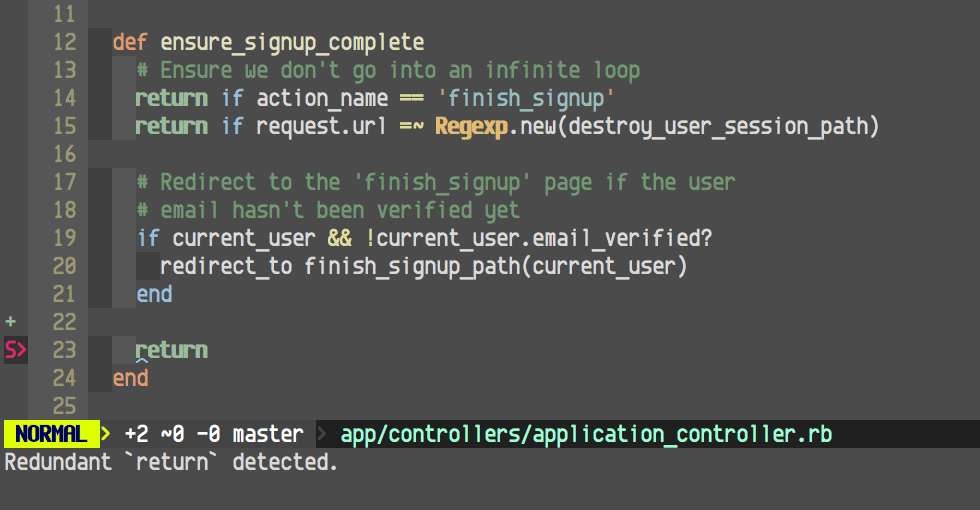
<p>This is how RuboCop can work with your Vim:</p>

<p><img src="/images/articles/rubocop-in-vim.png" alt="RuboCop in VIM with Syntastic" /></p>

<p>It comes with plugins for Sublime Text, TextMate, Atom, what have you. There is also a hosted service at <a href="https://houndci.com/">HoundCI</a> that checks your pull requests and posts comments about style improvements.</p>

<p>What’s also great, that RuboCop has a built-in code upgrade tool. It will go through all your code and magically translate it to the style of our choosing. I’ve tried it, even on a big project and it works.</p>

<p>All it takes is just drop one <a href="https://github.com/bbatsov/rubocop/blob/master/.rubocop.yml">rubocop.yml</a> file in our project and install the editor plugin or HoundCI.</p>]]></content><author><name>Piotr Usewicz</name><email>piotr@layer22.com</email></author><category term="ruby" /><summary type="html"><![CDATA[As some of you realise, there are times when you open an old file containing code and you think “WTF”. It’s also very likely that it is a file that you have created months or even years ago, and completely forgot about it.]]></summary></entry><entry><title type="html">How to create a website spider</title><link href="https://layer22.com/how-to-create-a-website-spider" rel="alternate" type="text/html" title="How to create a website spider" /><published>2015-01-28T00:51:00+01:00</published><updated>2026-03-11T22:06:36+01:00</updated><id>https://layer22.com/how-to-create-a-website-spider</id><content type="html" xml:base="https://layer22.com/how-to-create-a-website-spider"><![CDATA[<p>Creating a spider that generates a list of URLs for a given domain is very easy to do.</p>

<p>Spider simply visits each page in a domain, finds all the links and visits those.</p>

<p>With help from a gem called <a href="https://github.com/postmodern/spidr">Spidr</a> we can achieve that with few lines of code.</p>

<div class="language-ruby highlighter-rouge"><div class="highlight"><pre class="highlight"><code><span class="nb">require</span> <span class="s1">'spidr'</span>
<span class="n">urls</span> <span class="o">=</span> <span class="p">[]</span>

<span class="no">Spidr</span><span class="p">.</span><span class="nf">site</span><span class="p">(</span><span class="s1">'http://www.layer22.com/'</span><span class="p">)</span> <span class="k">do</span> <span class="o">|</span><span class="n">spider</span><span class="o">|</span>
  <span class="n">spider</span><span class="p">.</span><span class="nf">every_url</span> <span class="k">do</span> <span class="o">|</span><span class="n">url</span><span class="o">|</span>
    <span class="n">urls</span> <span class="o">&lt;&lt;</span> <span class="n">url</span>
  <span class="k">end</span>
<span class="k">end</span>
</code></pre></div></div>

<p>Fetching page content is also easy:</p>

<div class="language-ruby highlighter-rouge"><div class="highlight"><pre class="highlight"><code><span class="nb">require</span> <span class="s1">'spidr'</span>
<span class="n">contents</span> <span class="o">=</span> <span class="p">[]</span>

<span class="no">Spidr</span><span class="p">.</span><span class="nf">site</span><span class="p">(</span><span class="s1">'http://www.layer22.com/'</span><span class="p">)</span> <span class="k">do</span> <span class="o">|</span><span class="n">spider</span><span class="o">|</span>
  <span class="n">spider</span><span class="p">.</span><span class="nf">every_page</span> <span class="k">do</span> <span class="o">|</span><span class="n">page</span><span class="o">|</span>
    <span class="n">contents</span> <span class="o">&lt;&lt;</span> <span class="n">page</span><span class="p">.</span><span class="nf">body</span>
  <span class="k">end</span>
<span class="k">end</span>
</code></pre></div></div>

<p>What if we are only interested in paragraphs?</p>

<div class="language-ruby highlighter-rouge"><div class="highlight"><pre class="highlight"><code><span class="nb">require</span> <span class="s1">'spidr'</span>
<span class="n">paragraphs</span> <span class="o">=</span> <span class="p">[]</span>

<span class="no">Spidr</span><span class="p">.</span><span class="nf">site</span><span class="p">(</span><span class="s1">'http://www.layer22.com/'</span><span class="p">)</span> <span class="k">do</span> <span class="o">|</span><span class="n">spider</span><span class="o">|</span>
  <span class="n">spider</span><span class="p">.</span><span class="nf">every_page</span> <span class="k">do</span> <span class="o">|</span><span class="n">page</span><span class="o">|</span>
    <span class="k">next</span> <span class="k">unless</span> <span class="n">page</span><span class="p">.</span><span class="nf">content_type</span> <span class="o">=~</span> <span class="sr">%r(text/html)</span>
    <span class="n">paragraphs</span> <span class="o">&lt;&lt;</span> <span class="n">page</span><span class="p">.</span><span class="nf">doc</span><span class="p">.</span><span class="nf">search</span><span class="p">(</span><span class="s1">'p'</span><span class="p">).</span><span class="nf">map</span><span class="p">(</span><span class="o">&amp;</span><span class="ss">:text</span><span class="p">)</span>
  <span class="k">end</span>
<span class="k">end</span>
</code></pre></div></div>]]></content><author><name>Piotr Usewicz</name><email>piotr@layer22.com</email></author><category term="ruby" /><summary type="html"><![CDATA[Creating a spider that generates a list of URLs for a given domain is very easy to do.]]></summary></entry><entry><title type="html">Spring-load your Rails development environment to speed it up</title><link href="https://layer22.com/spring-load-your-rails-development-environment-to-speed-it-up" rel="alternate" type="text/html" title="Spring-load your Rails development environment to speed it up" /><published>2013-12-05T12:15:00+01:00</published><updated>2026-03-11T22:06:36+01:00</updated><id>https://layer22.com/spring-load-your-rails-development-environment-to-speed-it-up</id><content type="html" xml:base="https://layer22.com/spring-load-your-rails-development-environment-to-speed-it-up"><![CDATA[<p>There is a wide selection of tools that allow you to pre-load your Rails development environment to make it faster. We have <a href="https://github.com/burke/zeus">Zeus</a>, <a href="https://github.com/sporkrb/spork">Spork</a> or <a href="https://github.com/jstorimer/spin">Spin</a>.</p>

<p>All of them are great and help you work with your development environment faster, but there is a new contestant—<a href="https://github.com/jonleighton/spring">Spring</a> by Jon Leighton.</p>

<p>What sets it apart from others is fantastic integration with Rails—in fact, it will be a default with all new Rails 4.1 applications.</p>

<h2 id="so-what-does-it-give-us">So what does it give us?</h2>

<p>It pre-loads your development environment in the background without all the hassle of starting up servers etc.</p>

<p>All you need to do is simply add it to your project, install the gem and off you go:</p>

<p>In your <code class="language-plaintext highlighter-rouge">Gemfile</code>:</p>

<div class="language-ruby highlighter-rouge"><div class="highlight"><pre class="highlight"><code><span class="n">group</span> <span class="ss">:development</span> <span class="k">do</span>
  <span class="n">gem</span> <span class="s1">'spring'</span>
  <span class="n">gem</span> <span class="s1">'spring-commands-rspec'</span>
<span class="k">end</span>
</code></pre></div></div>

<p>The second gem also adds support for <code class="language-plaintext highlighter-rouge">rspec</code> binstub, so running your tests will use the preloaded environment.</p>

<p>We need to install the gem locally, so we don’t need to load it via <code class="language-plaintext highlighter-rouge">bundle exec</code> (which is slow!).</p>

<div class="language-plaintext highlighter-rouge"><div class="highlight"><pre class="highlight"><code>gem install spring
gem pristine --all
spring binstub --all
</code></pre></div></div>

<p>Let’s compare time differences for <code class="language-plaintext highlighter-rouge">rake routes</code>:</p>

<p>Without Spring:</p>

<div class="language-plaintext highlighter-rouge"><div class="highlight"><pre class="highlight"><code>$ time rake routes

  4.32 real 0.10 user 0.06 sys
</code></pre></div></div>

<p>Now with Spring:</p>

<div class="language-plaintext highlighter-rouge"><div class="highlight"><pre class="highlight"><code>$ time bin/rake routes

  0.89 real 0.12 user 0.07 sys
</code></pre></div></div>

<p>Notice that we are using the generated binstub. You can achieve the same result by using <code class="language-plaintext highlighter-rouge">spring rake routes</code>.</p>

<p>There are other commands and configuration options that allow you to fine-tune your environment. It’s all available in the <a href="https://github.com/jonleighton/spring/blob/master/README.md">README</a>.</p>

<p>Enjoy your faster running development environment.</p>]]></content><author><name>Piotr Usewicz</name><email>piotr@layer22.com</email></author><category term="rails" /><summary type="html"><![CDATA[There is a wide selection of tools that allow you to pre-load your Rails development environment to make it faster. We have Zeus, Spork or Spin.]]></summary></entry><entry><title type="html">Automatically bundle controller-specific assets</title><link href="https://layer22.com/automatically-bundling-controller-specific-assets" rel="alternate" type="text/html" title="Automatically bundle controller-specific assets" /><published>2013-11-24T22:32:00+01:00</published><updated>2026-03-11T22:06:36+01:00</updated><id>https://layer22.com/automatically-bundling-controller-specific-assets</id><content type="html" xml:base="https://layer22.com/automatically-bundling-controller-specific-assets"><![CDATA[<p>It’s very convenient to be able to automatically bundle some of the assets in a separate file eg. when you have a lot of controller/resource specific CSS or JavaScript.</p>

<p>Let’s say we are writing a blog, and we have two controllers—one for posts
and one for comments. We would also like to separate the stylesheets for them,
because, well, they are huge and only apply to either posts or comments.</p>

<p>All we have to do is add <code class="language-plaintext highlighter-rouge">rails-controller-assets</code> gem. It will look for assets
that match either <code class="language-plaintext highlighter-rouge">{controller_name}.css</code> or
<code class="language-plaintext highlighter-rouge">{controller_name}_{action_name}.css</code>.</p>

<p>In your <code class="language-plaintext highlighter-rouge">Gemfile</code> simply add:</p>

<div class="language-ruby highlighter-rouge"><div class="highlight"><pre class="highlight"><code><span class="n">gem</span> <span class="s1">'rails-controller-assets'</span>
</code></pre></div></div>

<p>Now let’s add a new bundle file for both posts and comments:</p>

<p>In <code class="language-plaintext highlighter-rouge">app/assets/stylesheets/posts.css</code>:</p>

<div class="language-css highlighter-rouge"><div class="highlight"><pre class="highlight"><code><span class="nc">.post-title</span> <span class="p">{</span> <span class="nl">color</span><span class="p">:</span> <span class="nx">blue</span> <span class="p">}</span>
</code></pre></div></div>

<p>In <code class="language-plaintext highlighter-rouge">app/assets/stylesheets/comments.css</code>:</p>

<div class="language-css highlighter-rouge"><div class="highlight"><pre class="highlight"><code><span class="nc">.comment-title</span> <span class="p">{</span> <span class="nl">color</span><span class="p">:</span> <span class="nx">brown</span> <span class="p">}</span>
</code></pre></div></div>

<p>The last step is to let the <code class="language-plaintext highlighter-rouge">stylesheets_link_tag</code> know what other files to
include:</p>

<p>In yout <code class="language-plaintext highlighter-rouge">app/views/layouts/application.html.erb</code>:</p>

<div class="language-erb highlighter-rouge"><div class="highlight"><pre class="highlight"><code><span class="cp">&lt;%=</span> <span class="n">stylesheets_link_tag</span> <span class="s1">'application'</span><span class="p">,</span> <span class="o">*</span><span class="n">controller_stylesheets</span> <span class="cp">%&gt;</span>
</code></pre></div></div>

<p>This will make sure that the current action, when rendered will have all the
defined bundles included.</p>

<p>The same can be applied to JavaScript with:</p>

<div class="language-erb highlighter-rouge"><div class="highlight"><pre class="highlight"><code><span class="cp">&lt;%=</span> <span class="n">javascript_include_tag</span> <span class="s1">'application'</span><span class="p">,</span> <span class="o">*</span><span class="n">controller_javascripts</span> <span class="cp">%&gt;</span>
</code></pre></div></div>

<p>Bundle files follow the same pattern: <code class="language-plaintext highlighter-rouge">{controller_name}.js</code> or
<code class="language-plaintext highlighter-rouge">{controller_name}_{action_name}.js</code>.</p>

<p>From now on, each page will be served with it’s own bundle file which will give
us faster download speeds and rendering in browser.</p>

<p>The same pattern can be applied manually by adding <code class="language-plaintext highlighter-rouge">config.assets.precompile +=
%w(posts.css comments.css)</code> in your <code class="language-plaintext highlighter-rouge">application.rb</code> file, but this gem does it
automatically, so you will never forget to add your file there.</p>]]></content><author><name>Piotr Usewicz</name><email>piotr@layer22.com</email></author><category term="rails" /><summary type="html"><![CDATA[It’s very convenient to be able to automatically bundle some of the assets in a separate file eg. when you have a lot of controller/resource specific CSS or JavaScript.]]></summary></entry></feed>